Roger Payne

Big tips for shooting small

header image
w360_6415757_tutorialbannerfordotmailerWhat’s not to like about macro (close up) photography? Getting closer to your subjects to see them in greater detail will always appeal, so picking up a few techniques to help you get better at shooting close ups is always worthwhile. Before we get down to the picture taking, let’s cover off the basics.

First, to get the best results you’re going to need a macro lens. That doesn’t mean a lens that has a macro setting, it means a proper macro lens. Such optics aren’t only suitable for close up work. The FUJIFILM XF60mm F2.4 Macro lens that we’re using here, for example, doubles as an excellent lens for shooting portraits, but it’s optically engineered to excel at close ups.

When it comes to macro lenses you’ll often hear the term ‘reproduction ratio’, such as 1:2 or lifesize. Put simply, this refers to the size the lens can reproduce what it’s being pointed at. A macro lens that offers a lifesize (or 1:1) ratio will reproduce the subject at the same size on the sensor as it is in real life. 1:2 means the subject will be reproduced at half lifesize, and so on. The XF60mm offers a 1:2 reproduction ratio.

Finally for now, it’s important to know that the closer you get to a subject, the smaller the area that appears in sharp focus. Given this, focusing has to be extremely precise, which is why a tripod or some other form of support is recommended.


Scenario 1: Shooting macro outdoors

With spring just around the corner, it’s obvious to brush up on your macro skills so you can shoot flowers. Indeed, for this very blog, I found a clump of snowdrops in my local park. Shooting macro images outdoors brings a number of challenges. The light levels vary which can cause exposure issues and, on the day I shot, it was windy, which causes delicate flowers like this to blow around a lot. That means you’ll need to shoot plenty of images, so make sure your battery is fully charged and you there’s plenty of room on your memory card.

I used an X-T1 for all these images as the fold out LCD is an absolute godsend. As I was working at ground level, it avoided me having to lay down on the cold ground. Instead, I popped out the LCD and rested the camera on a rolled up coat for support as my tripod didn’t go low enough.

I picked my subject carefully, finding one bloom that was isolated away from a larger group so I could focus attention on it and still get some complementary colours in the background; always check what is behind your subject before you shoot.

DSCF0131

The first shot I took (above) was with the XF18-55mm set to 55mm and at its closest focusing distance. To be fair, this isn’t a bad result at all, but doesn’t really have a huge amount of impact as the bloom is quite small. So I reached for the macro lens and took this:

DSCF0137

It’s a big improvement with the bloom occupying more of the frame, but the light is a little flat, so I used a small silver reflector placed under the snowdrop to push some more light in and get an even better shot:

DSCF0140

I could have stopped there and been happy, but I also had the FUJIFILM MCEX-11 and MCEX-16 extension tubes with me, so I gave them a try. The tubes fit between the lens and body and allow you to focus even closer. Both tubes maintain all functionality between lens and camera including autofocus, but the focus can hunt a little more and as I was getting so close to the snowdrop I opted to switch to manual focus and use Focus Assist to enlarge the subject on the X-T1’s rear LCD for focusing accuracy. AF hunting isn’t the end of the world, but means you can end up with shots like this where it’s focused on the background rather than the single bloom.

DSCF0142

I took three further sets of images, one with the 11mm, one with the 16mm and then one with the two combined, which got me closest of all. The reflector stayed in place for each image, but the sun was in and out hence the variations in light levels. Take your pick!


Scenario 2: Focus stacking indoors

Time to warm up and head indoors to try another macro technique: focus stacking. Here, you take a range of shots with the lens focused on different parts of the subject before using Photoshop to stack them all together and get one super sharp image.

As previously mentioned, the closer you get to the subject, the smaller the zone of sharp focus so it can be difficult to get the image sharp from front to back. One solution would be to put the camera on a tripod and use a small aperture. But this could make for a long exposure, plus lenses aren’t always at their optical best at smaller apertures. It’s better to pick a central aperture – here I used F5.6 – and stack the images together.

DSCF0192

To make this technique work, you’ll need something called a focusing rail. This attaches to your camera and allows you to make precise incremental changes by using the measure on the side of the rail. I used the 454 Micropositioning Sliding Plate by Manfrotto. I attached this to the X-Pro2 and XF60mm with MCEX-11 extension tube I was using inside, then put both on a tripod and framed up my subject – a dusty snooker scoreboard. In case you wondering why I didn’t remove the dust, this is purely to show how much detail you can get using the stacking technique.

DSCF8664

With the XF60mm set at F5.6 and manually focused on the number 9, here’s the result I got (above). The 9 is nice and sharp, but the in focus area soon drops off on either side. Next, I didn’t touch the focus on lens and moved the focusing rail until the point nearest the camera came into focus. Noting the distance on the rail, I took a shot. I then moved the rail until the furthest point from the camera into focus and took another shot. Again, nothing on the camera was changed and I noted the distance on the rail.

The distance between the two focus points needed the rail to be moved by 4cm. So, again, by not touching any settings on the camera or lens, I moved the rail incrementally by 2mm at a time and took further shots. This gave me a total of around 20 images. Shooting over, I went to my computer and fired up Photoshop.

I opened all the files at once in Photoshop and then chose File>Scripts>Load File into Stack then on the dialogue box that opened, I chose Add Open Files and OK. With this complete, I then opened the Layers palette in the resulting image and selected all the Layers before choosing Edit>Auto-Align Layers. Once this was complete, I then selected all the Layers again and chose Edit>Auto-Blend Layers. On the resulting dialogue box, I chose Stack Images and then hit OK.

Screen-Shot-2016-02-17-at-07.08.32

Depending on how much RAM your computer has, these processes may take a while, but once Photoshop has weaved its magic, you should find a sharp image where all the frames are stacked together. There is a possibility that your image will have some odd overlapping elements caused by the slight variance in camera angle between each frame as you move the camera along the rail. In this case, I did, but I was able to crop in slightly to removing the offending areas. If that’s not an option, you’ll need to try a different subject matter and preferably shoot on a plain background such as white or black.

_Stacked

If you’re happy with the result, finish by choosing Layer>Flatten Image and you’re done!

So there you have it – macro in a nutshell. One final point to bear in mind, macro photography is time-consuming to get right. Don’t expect great results straightaway, although there’s little doubt that patience will be rewarded. So when it comes to macro ideas, think big!

Natural vs artificial light

DSCF0057
w360_6415757_tutorialbannerfordotmailerLight. There’s a lot of it about. And as photographers it’s up to us to harness it in every shot we take.

You may have a personal preference as to which light source you prefer, be it natural or artificial and, despite the combative title of this blog, we’re not for one minute going to suggest that one is better than the other. Instead, we’d suggest that it’s what you’re shooting that counts and should make your choice accordingly.

By way of demonstration, I set up a couple of still-life images, lighting one using artificial light from a humble desk lamp and the other using diffused daylight on a cloudy day. Along with the lighting being switched, I also changed the subject, but nothing else – the background is the same as is the kit – a tripod-mounted X-T1 with the spectacular XF90mm F2.

DSC02280

Shooting in artificial light

The beauty of artificial light is that it’s completely controllable. Even a simple desk lamp, like the one I’ve used here, can easily be moved around so you can direct the light where you want it. The same, of course, applies to flash, LED and fluorescent light sources. Compared to daylight, artificial light sources are comparatively small, meaning the light they emit is more harsh. You can diffuse it or you could simply play to these strengths, as I did here to light my spanner collection. Metallic objects – among others – are great for this kind of light, which throws deep shadows on the opposite side to the light source. For the collection of images below, I simply moved the light around the set up to get a variety of different effects.

As well as being a harsher light source, artificial light like my desk lamp tends to be less powerful, so you may need to increase your ISO if you want to shoot hand-held or – as I did here – mount the camera on a tripod. You also need to consider your white balance settings, but we’ll come to that a bit later.

Shooting in daylight

Putting my desk lamp to one side for a minute, I moved on to shooting with daylight, using a large, north-facing window in my house as the light source and opening the curtains completely. North-facing windows are best because no matter what time of day you shoot, the light will always be soft as the sun will never shine directly through it. I had no such problems on this dreary day. Daylight like this is lovely and soft, so it lends itself perfectly to flattering portraiture. With no willing human subjects on hand, I switched to this gerbera, which benefits just as well from the diffused light.

DSCF0067


DSC02282

I started by setting up with the window directly behind me, which created the shot above. It’s OK, but the light is very flat and the background is a little more prominent than I would have liked. To solve this, I moved the flower round by 90° to help create some shadows between the petals and tried again. Much nicer – there’s some improved definition on the stem of the flower and the background is darker!

The daylight was a little brighter than my artificial light set up, but not by a huge margin and, wanting to keep the ISO down, I shot tripod-mounted again. With a human subject, I’d have pushed the ISO higher. Despite the fact that I was shooting within one metre of a floor-to-ceiling window, daylight levels do drop off quickly as you move away from the window. To counteract this, I used an A2 sheet of white card as a reflector to push light into the left hand side of the flower.

A question of white balance

Every light source has its own colour temperature, which is measured in Kelvin, essentially this means that different types of light have different colours. The human eye automatically corrects for this, but cameras can’t so you need to make sure you set the correct white balance setting to make sure colours are accurate under different lighting conditions. It’s tempting to shoot with white balance on Auto, but this one size fits all approach can get caught out. Which is why I always change the white balance setting myself when I shoot. Shooting in Raw is also an option as you can change the white balance setting in post production; a luxury that isn’t available with JPEGs.

Your X series camera comes with a variety of preset white balance options – daylight, incandescent, shady, fluorescent etc – in the first instance, use one of these. But the X-series cameras also have a Custom white-balance option which helps you get super-accurate colours 100% of the time.

Using it is simple, just frame the shot as you want it, select the Custom white-balance mode and then follow the on-screen instructions. Essentially, you need to hold a piece of white paper or card in the same lighting as the subject and then let the camera do the rest. I did that on both set ups, as well as used some presets, the results of which are shown here. Of course, there’s no right or wrong here, you can simply pick the shot you like the best, but it’s well worth playing about with white balance settings. Give it a go, whatever lighting you’re using!

For more help with white balance & settings please find our dedicated tutorial here.

Getting started with flash

Off cameraw360_6415757_tutorialbannerfordotmailerSo how do you get on with using flash? If you’re like 90% of the world’s photographers the answer to that will be ‘pretty badly’. You’re never quite sure what it’s up to, never feel fully in control of what’s going on and are never completely happy with the results you get. And that’s a shame because, when you come to think about it, flash is the most controllable light source you have at your disposal. You can fire it when you want, put out lots of power (or very little) and you can even shape or colour the light. Just imagine what brilliant landscape photographers we’d all be if we had the same amount of control over daylight! So, flash isn’t the bad news that many photographers consider it to be, it’s simply a question of learning the functions you have at your disposal and how to bend them to your creative will.  

No doubt, after the rousing words of my opening paragraph you’ll be wanting to get to grips with multiple flash set ups right from the off. But that’s a little like competing in the 100m at the Olympics before you can walk. Let’s ease you in more gently by giving you an overview of the flash features you have at your disposal on a Fujifilm X-series camera and when you might press them into service. In this particular case, I’m heading to the Flash Set-Up menu on an X-T10.

Within that menu you’ll find the Flash Mode option, which gives you five choices: Forced Flash, Slow Synchro, 2nd Curtain Sync, Commander and Suppressed Flash. The last option is perhaps the most obvious; selecting Suppressed Flash means the flash won’t fire even if it’s popped up ready for action, nor will a hot-shoe flash fire if it’s attached to the camera and switched on. But seeing as this a guide to firing the flash, we best move on.

Forced Flash is the polar opposite of Suppressed Flash. As long as the integral unit is flipped up or a hot-shoe flash is attached and switched on, the flash will fire on every shot, irrespective of how bright the light in the scene is. This may sound a little odd, but you’re actually most likely to use this mode in bright daylight for a technique called fill-in flash. This is where you ‘fill-in’ shadows – typically in a portrait – with a low powered burst of flash, which is achieved by combining Forced Flash and the Flash Compensation mode. Take a look at the two shots above. The one on the left is taken without flash. It’s OK, but the subject’s face is in shadow. By using Forced Flash and -1 Flash Compensation, we got a lower powered burst of flash that filled in the shadowy area and put a nice catchlight in our subject’s eyes.

Slow sync

Next on the menu is Slow Synchro, which is used to add a touch of dynamism to action images or to shoot portraits in low light conditions. Selecting this function and a slower shutter speed produces the sort of image you see above on action shots. Panning the camera during the exposure introduces the blur, but then the burst of flash momentarily freezes the subject so you get this look. The shutter speed doesn’t have to be too slow – the shot above was taken at 1/8sec, but it adds an extra dimension to your shots.

Equally, using Slow Synchro can help capture more ambient light in low light conditions. Take a straight shot with flash at night and you’ll end up with a shot like the one below left – rather dull. Use Slow Synchro and the longer exposure ensures the background appears while the flash illuminates your subject perfectly. In this case you’ll need to keep both the camera and the subject still – we’d recommend a tripod and a head brace. Ok, maybe just the tripod.

Note: It’s worth noting that Slow Synchro is only available on the menu in aperture-priority and program exposure modes. If you want to combine a slow shutter speed in shutter-priority or manual modes you still can – just switch to Forced Flash and select the shutter speed you require.

2nd Curtain Sync is another one for those who want to make movement look natural and, much like Slow Synchro is a question of combining a burst of flash with a longer shutter speed. The ‘curtain’ part of the equation refers to the camera’s shutter curtain. In any given exposure, the first curtain begins the exposure, the second curtain ends it. Typically, when you’re using flash, the flash is fired at the start of the exposure – when the first curtain moves. But switching to 2nd Curtain Sync, the flash fires at the end of the exposure. This is largely irrelevant if the exposure is a fraction of a second. But it’s important with a longer exposure. Take a look at the two shots below. For the shot on the left, the flash has fired at the start of the exposure and then the car has moved to create the blurred light effect. The trouble is, it looks as though the car has reversed. It didn’t, it moved forwards. By selecting 2nd Curtain Sync, the flash fires at the end of the exposure after the car has moved, so you get a more natural-looking effect with the blurred lights.

Note: When using 2nd Curtain Sync with a built in or hot-shoe flashgun, two bursts of flash will fire. The first at the beginning of the exposure, is purely designed for the camera to get an exposure assessment and does not effect the actual exposure. The second flash, at the end of the exposure, is the one that actually illuminates the subject.

Finally, we have the Commander mode, where you can use the camera’s integral flash to fire a second flash away from the camera. This is used for more creative on-location effects, like the one below. It’s simple enough to do and produces professional looking results.

Off camera

So that’s the top line when it comes to shooting flash. Hopefully, this top-line introduction has armed you with enough information to start getting to grips with the flash modes you have available. But we’ll be going into more detail on each of these techniques in subsequent blogs over the next few weeks.

Plastic fantastic!

This colourful effect is known as cross polarisation and the good news is, it’s incredibly easy to do. In the days of film, this technique would have regularly required sheets of polarising film placed behind the subject and a polarising filter on the camera. Now, all you need is a polarising filter, a computer screen and a plastic geometry set. Here’s how it’s done:

DSCF9582

1 As mentioned, the pre-requisite parts are a geometry set (we pushed the Fujifilm budget to the limit spending £1.59 on this one), a polarising filter and a computer screen. It isn’t essential that the filter is the correct size for the lens you’re using – just as long as it covers the front element. I used the super-sharp XF60mm macro for these image, but didn’t have a 39mm filter, so I just used a 72mm one instead.

 2 All these shots were taken with the X-T1, which I set to aperture-priority, ISO 200 and spot metering. The camera was tripod mounted and positioned directly in front of the screen.

Screen Shot 2015-03-08 at 08.48.103 The computer background needs to be white. As I was using an Apple Mac, I did this through the System Preferences window. With the background white, I positioned the pieces from the geometry set directly on the computer screen in the order I wanted them.

DSCF9587

4 Here’s the magic bit! Put the polarising filter in front of the lens and slowly rotate it, as you do, you’ll see the screen turn grey, then black. As this happens, the vibrant colours in the plastic will appear. Make sure you spot meter from the plastic, not the black background and you’ll get a result like this.

 5 Once you’ve perfected the technique, you can start getting creative. Here are a couple of extra shots of individual pieces from the set where I cropped in in post-production.

Quick tips

There is a ‘sweet spot’ when you’re turning the polarising filter, make sure you experiment so you get a pure black background, otherwise you’ll end up with a less-appealing grey as you see here.

DSCF9589

Use the Velvia Film Simulation mode for really vibrant colours.

On some screens, when you find the optimum position for the polarising filter, small white dots will appear in the background. These may disappear when you spot meter accurately, but if they don’t you can get rid of them by boost the blacks in post production.

We’d advise you to buy a new geometry set rather than using an old one, which will almost certainly be covered in scratches and will dilute the effect. Besides, everyone needs a protractor, right?

Camera shake is great!

This is my favourite version - the sun had come out so the shutter speed increased to 1/4sec, but I still got some decent movement
This is my favourite version – the sun had come out so the shutter speed increased to 1/4sec, but I still got some decent movement

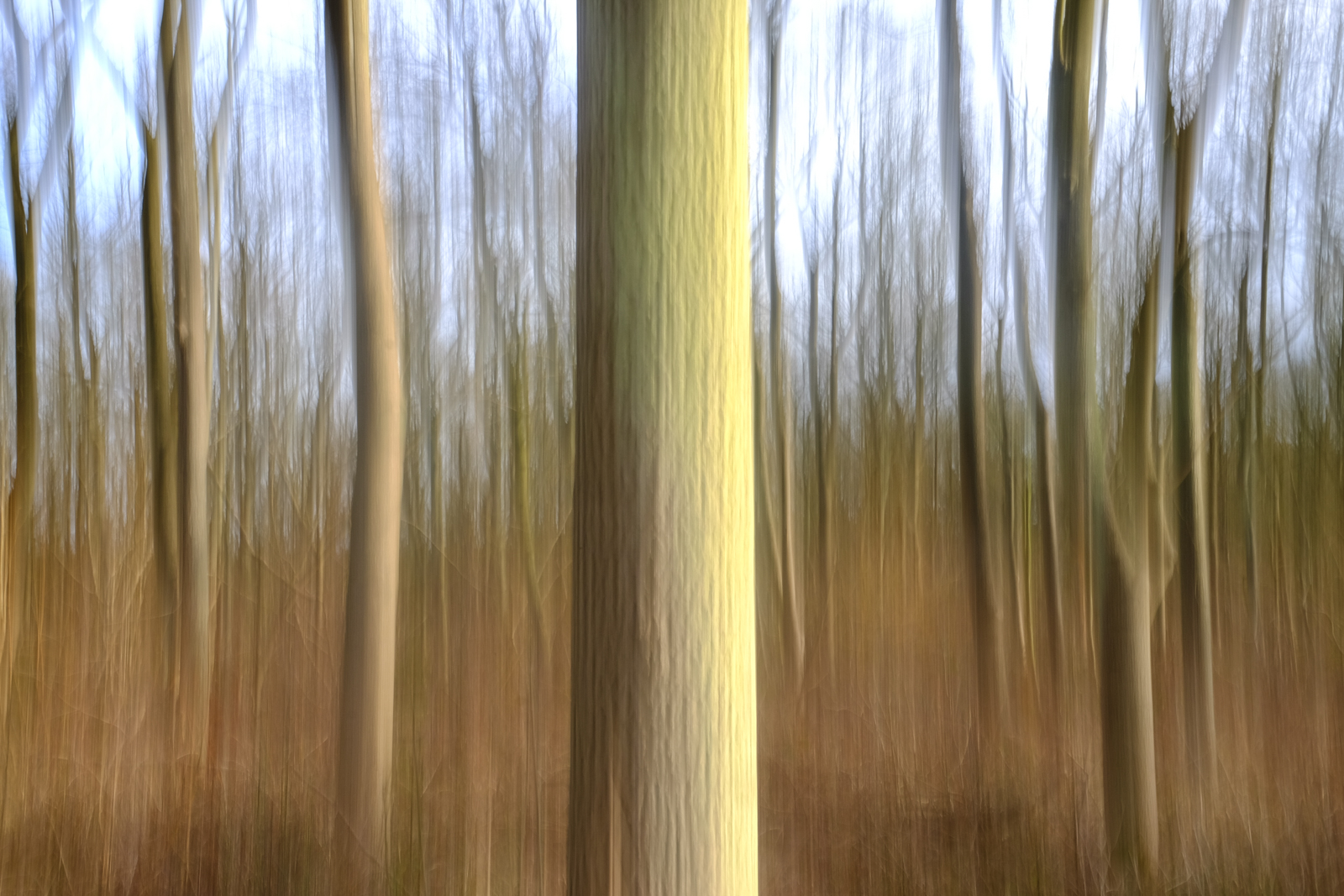
Fujifilm spend a lot of money developing systems to help reduce the chance of camera shake from spoiling our shots. Very effective they are, too. But sometimes, moving the camera during the exposure can be beneficial to your shots. The most obvious example is panning, where you track a moving subject, but there are other techniques that come under the banner of intentional camera movement (ICM) and it’s these that we’re going to explore here.

Pretty much any subject can be used for ICM, but it’s often best to loosely match the shape of your subjects to the movement you intend to make. Trees, for example, are ideal for vertical movement, whereas a landscape is good if you choose to move the camera horizontally. You can also twist the camera from side to side, which can induce a dizzy feeling in the viewer, so this works well if you’re looking up at a tall building or trees.

The actual movement part of the process can be done with your camera hand-held, but you’ll get far more consistent results if you mount your camera on a tripod. Even so, make sure you’ve got a fully charged battery and a card with plenty of space on it as you’ll inevitably get more misses than hits at first. As you’re going to be using a long(ish) shutter speed, also consider taking a polariser or neutral density filter with you, particularly if it’s a sunny day. Right, let’s head to the woods…

DSCF3163

1 Here’s my set up; an X-T1 with XF 18-55mm zoom, mounted on a sturdy tripod. The eagle-eyed among you will notice that I left OIS turned on for this quick shot, but I switched it off before I started taking images, and you should too. This avoids electronics trying to take over and reduce the movement.

2 Next, I selected the X-T1’s lowest ISO, the 18-55mm’s smallest aperture (f/22) and the two-second self-timer option. I then switched to the Manual exposure mode and took a meter reading from the scene, which gave me a shutter speed of 1/2sec. Ideally, you should be working with a shutter speed between two seconds and 1/4sec, so this was perfect and didn’t require the help of filters.

DSCF3179 copy

3 Finally, I locked off all the movements on the tripod head with the exception of tilt, pressed the shutter release and then quickly moved the head backwards and forwards. These movements should be as smooth as possible and the two-second delay gives just enough time to get into rhythm. If you find this isn’t enough time, use the ten second delay.

Once you’ve got used to the actual picture taking technique, try a range of different compositions. I like to have a tree prominent in the front of the shot, but you may opt for a more uniform. Take a look at the images below to see what I got.

ICM on the computer
There may be times when you want to have a go at ICM, but don’t have a tripod with you. On these occasions, you can rely on Photoshop. These two shots were done simply by using the Motion Blur filter.

To do it, open the image in Photoshop, then select Filter-Blur-Motion Blur. In the dialogue box that opens, you can choose the angle of blur (I left these of 0°), then simply move the pixel slider until you get the effect you’re after. Simple.

If you found this tutorial useful, do let me know. I’m happy to take suggestions for techniques you’d like to see, so just add your own views and comments below.

In praise of the XF60mm

It’s that time of the year; huge spiders in the bath, a distinct chill in the air, a phone call to the central heating engineer when you realise your boiler doesn’t work and more macro subjects than you can shake a stick at. That’s right, it’s autumn and say what you like about the photo opportunities that come with this time of year, I spend most of it shooting close-ups. This year that means giving the XF 60mm F2.4 Macro lens a real workout. It’s been glued to my X-T1 since mid-September and I don’t see it being removed this side of Halloween.

Woodland. 1/900sec at f/2.4, ISO 400

As one of the original trio of XF lenses, the 60mm will always hold a special place in the line-up. It was there at the start, along with the 18mm F2 and 35mm F1.4, but before I’d even handled one I had the feeling it was the black sheep of the triumvirate. I’d read that it wasn’t a ‘true’ macro lens by virtue of its 1:2 magnification ratio and that the autofocusing was sluggish. Like all XF lenses, it did have optical quality on its side, but some reviewers didn’t seem to think this was enough.

The first time I attached the lens to an X-T1 it instantly evoked memories of using a 50mm standard lens on a film SLR. Sure, the 60mm is physically a little longer, but the third-stop aperture ring and deep manual focus ring make for great handling. It’s also got a lens hood that’s almost as deep as the lens itself, which simply can’t be argued with. Straight out of the box, the lens did need a firmware upgrade, which is meat and drink to X-series shooters like you; completed with a click of a mouse here and the insertion of a memory card there. From that point on I was ready to go, stepping into the autumn sunshine – and the obligatory spider’s web that had been pitched across my front door overnight.

I started off with a few looseners, shooting more general scenes before the inevitability of shooting close-ups loomed large. For general picture taking, the 91mm equivalent is a really pleasant focal length to work with. You’ll have to stand back further than you might think to get larger subjects in the frame, but shooting in my preferred aperture-priority mode and working with that sublime aperture ring is a simple aesthetic pleasure. The focusing was good too; crisp, accurate, no hint of the sluggishness suggested by previous reviewers.

But I’d come for the close-ups and as I inched closer to my first decaying leaf, the focus did seem to falter. Sure enough, the sure-footed focusing performance switched to a less convincing AF show. Being half-dead, my arboreal subject sat patiently, but had I been photographing an insect or the like, I could imagine frustration would have been setting in.

Garden furniture. 1/500sec at f/2.4, ISO 200

It was at this point I remembered the X-T1 had a macro mode, which turned out be the 60mm’s saviour. With macro mode on, the lens was revitalised and while it’s not the fastest focusing XF lens I’ve tried, it certainly didn’t stop me taking any of the close-ups I was after. The ‘lack’ of magnification didn’t bother me either. I got as close as I wanted to and, let’s be honest, could easily crop further in during post production, such is the quality of the X-Trans generated files.

And what about those files? Well, naturally, they’re great. Right across the aperture range, they’re sharp from corner to corner. Is there really anything else you could ask for from a macro lens? No, probably not. Although image stabilisation and weather resistance would be handy on the MkII version as and when that comes along…