tutorial

6 Great tips for better portraits

Winter isn’t just about shooting landscapes, you can grab some great portraits too – just follow our advice for better people pictures

Good portraits don’t just happen, some planning is essential. Preparation can be a constant process; bookmark websites with images that inspire you, tear out pictures from magazines, grab shots of billboards that appeal. That way you’ll have some ideas to draw on.

When it comes to taking the pictures, share those ideas with your subject; see the shoot as a collaboration. Keep talking to them as you take pictures and show them the images on the rear LCD – silence isn’t golden in portraiture.

At this time of year, you may want to shoot indoors or out. Outdoors on a cloudy day, the light is beautifully soft, which is very flattering for portraits. Use a reflector to even the light up as much as possible and consider changing the white-balance to the Shade preset to warm up the scene. Sunny conditions work well too, but make sure you use a lens hood to avoid excessive flare and ghosting. Indoors, position your subject near a window for an available light shot or use flash lighting for greater control.

No matter where you work, keep the shooting time short, especially if you’re photographing kids.

Sharp focus on the eyes is crucial otherwise the portrait will lack impact, but don’t feel your subject has to look straight at the camera. Be bold with your compositions – you don’t have to take everything with the camera held upright.

When it comes to lenses, anything goes! The XF50-140mm and XF56mm APD lenses are obvious options, thanks to their excellent bokeh effects, but wide-angle optics are worth consideration, especially if you want to include more of the surroundings. Need some portrait ideas? Try these…

Open wide

Portraits aren’t all about cropping in close, they can also work well when shooting wide to include the surroundings. Use this approach when you want to tell more of a story with your subject, or simply want to make the most of a fantastic location you’ve found.

527559479

Go for bokeh

Fujifilm’s new XF56mm F1.2 APD lens is perfect for portraits. Position your subject in front of a background with bright highlights, then use the maximum aperture for stunning bokeh effects. This approach also works well with other fast-aperture prime XF lenses.

519723105

Keep it simple

If you’re shooting in a studio, don’t try to use too many lights. One main light and a reflector is all you need to get some great shots, especially if the light has an umbrella or softbox to diffuse the light for a more flattering result.

515145277

Form a group

Make portraiture more social by shooting a group. Avoid lining everyone up in one row; try having some people sitting with others standing behind, or look for a slope or steps for compositional variety. Silhouettes like this work well, too. Take plenty of shots – you’ll be surprised how many group shots can be spoiled by one person blinking!

455302557

Creative candids

Getting your subject engrossed in an indoor or outdoor activity gives you the perfect chance to shoot natural candids. Set your X-series camera to continuous AF and continuous shooting so you can keep up with any movement, then fire away. Choosing one of the Auto ISO options will increase your hit rate of sharp shots.

462043719

Add some colour

When the weather is colder, natural colours are more muted. Give your portraits a colour boost by adding in bright accessories such as a hat, scarf, coat or gloves. Then select the Velvia Film Simulation mode to give them extra saturation.

525986397

Story behind the photo – Strong Contrasts

I thought I’d put together a blog on how I came about taking this image and the thought process I went through.

It was a grey and gloomy day, not overly inspiring for photography but I thought I’d bring my X100s with the TCL-X100 converter attached with me while I took my dogs out for a walk. Most of the walk was spent either trying to avoid slipping over in the thick, wet mud or turning my body to avoid having a face full of rain. I was shooting with the black and white + red filter preset as it worked well with the gloomy conditions for some moody shots. As I reached the top of the hill I was walking up, I noticed how quickly the clouds were moving across an adjacent hilltop and instantly decided to drive back to this location with my tripod and filters*.

I was imagining the image I want to produce while walking back down with the dogs. There was a strong contrast between the immovable trees and the blustery clouds so I wanted to exaggerate this.

Behind the shot-4
What you can’t make out from this photo is the speed of the clouds moving from right to left. That is because the shutter speed used has frozen the clouds, so there is no sign of movement.

I decided to use the X-T1 and the XF18-135mm lens because it was very versatile and meant I could change my composition with minimal effort! I mounted the camera onto a tripod and attached a filter holder system. I have a collection of square filters, these are very helpful as you can use square filters with a variety of lenses with different filter thread sizes, all you need are different filter adapters. Though the systems are relatively expensive, in the long run they are more economical than circular filters. I also used a remote trigger which means I don’t have to touch the camera and introduce any unnecessary camera shake to take the picture, this is very helpful for long exposures.

Behind the shot If you look at the above photo you can see that I have a filter inserted into the filter holder. I decided to use a gradual neutral density filter as this allowed me to darken the sky while having less/little effect on the ground.

The left filter is a gradual neutral density filter, it isn’t square which means you can adjust how far down you want the gradient to affect your picture. The filter on the right is a neutral density filter, which is constant throughout. This particular one is a 10-stop filter hence why it is so dark as it cuts the amount of light passing through it by ten times, so slowing down shutter speeds drastically.

I put the gradual filter in first and set it up how I wanted it, set focus and then inserted the 10-stop filter. The reason why I set the focus first is the 10-stop filter can make auto-focus very difficult so it is better to have it all set beforehand. On this occasion the 10-stop filter didn’t take the shutter speed below 30 seconds, which means the camera is able to accurately read the exposure required. If a 30 second exposure is still too short once you’ve applied the filter, then you’ll need to refer to a chart that shows the difference.

Behind the shot-12
This was taken with only the gradual filter so the shutter speed was still high enough to freeze the clouds.

Despite the fact that I’ve used a graduated neutral density filter, I’ve deliberately under exposed the picture to keep it dark and moody, hence why the ground is still dark. The slideshow below is a collection of images that used the 10-stop neutral density filter to slow down the shutter speed and as a result capture the cloud motion.

My photos are dominated by the sky – I deliberately kept the horizon low in the picture as the sky was the main subject for me. With the wider shots, I could have moved the horizon up more but the foreground content wasn’t particularly exciting, the sheep weren’t overly inspiring!

I hope this has been helpful and if you have any questions then please don’t hesitate to ask. There is one colour image above, I’d love to know which is your favourite out of the final four. For me it is the portrait orientated shot as I was lucky enough to capture the sun peering through the clouds.

*If you haven’t already seen my previous blog about photographing winter, then check it out here: https://fujifilm.blog/2014/12/31/capturing-winter/

Camera shake is great!

This is my favourite version - the sun had come out so the shutter speed increased to 1/4sec, but I still got some decent movement
This is my favourite version – the sun had come out so the shutter speed increased to 1/4sec, but I still got some decent movement

Fujifilm spend a lot of money developing systems to help reduce the chance of camera shake from spoiling our shots. Very effective they are, too. But sometimes, moving the camera during the exposure can be beneficial to your shots. The most obvious example is panning, where you track a moving subject, but there are other techniques that come under the banner of intentional camera movement (ICM) and it’s these that we’re going to explore here.

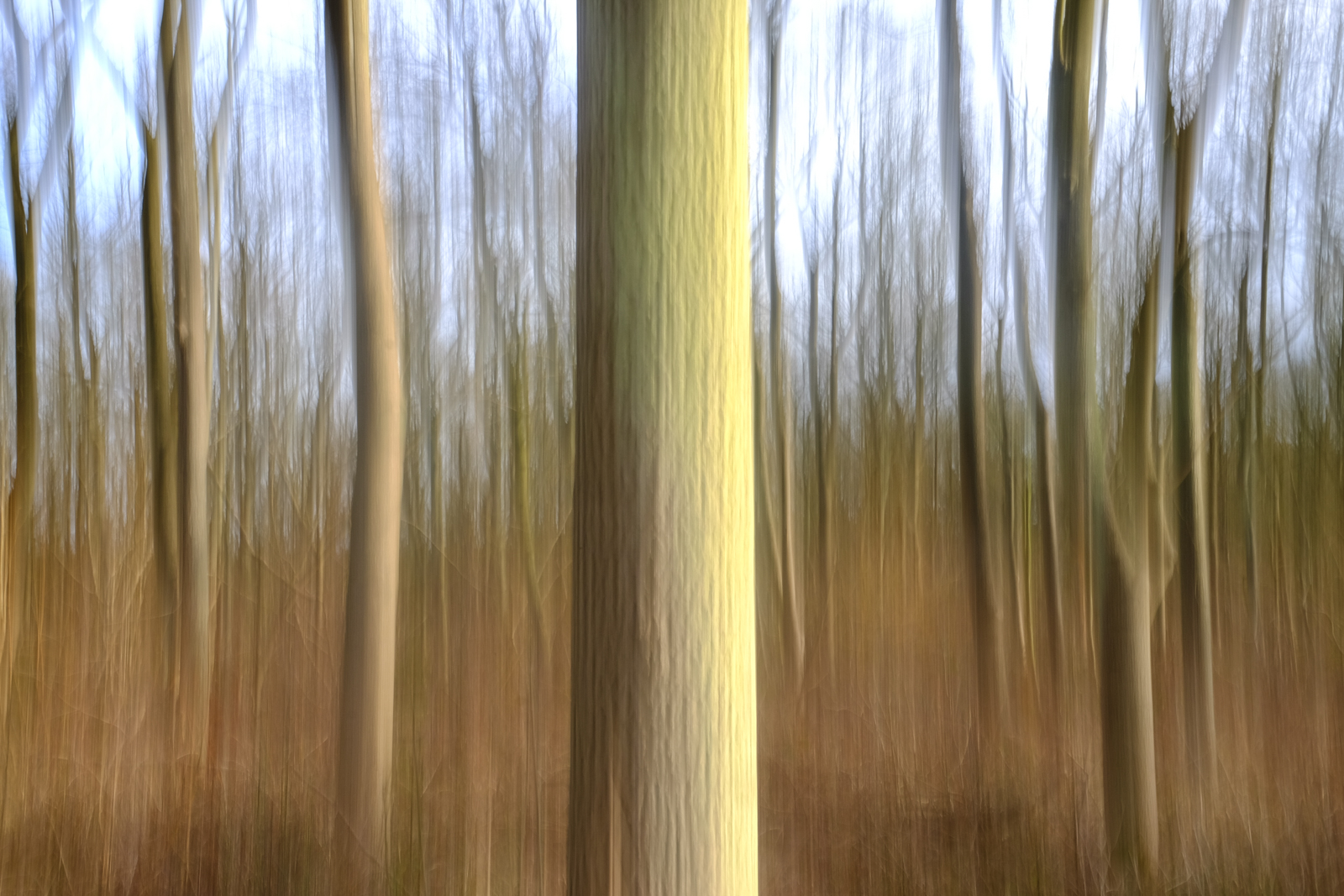
Pretty much any subject can be used for ICM, but it’s often best to loosely match the shape of your subjects to the movement you intend to make. Trees, for example, are ideal for vertical movement, whereas a landscape is good if you choose to move the camera horizontally. You can also twist the camera from side to side, which can induce a dizzy feeling in the viewer, so this works well if you’re looking up at a tall building or trees.

The actual movement part of the process can be done with your camera hand-held, but you’ll get far more consistent results if you mount your camera on a tripod. Even so, make sure you’ve got a fully charged battery and a card with plenty of space on it as you’ll inevitably get more misses than hits at first. As you’re going to be using a long(ish) shutter speed, also consider taking a polariser or neutral density filter with you, particularly if it’s a sunny day. Right, let’s head to the woods…

DSCF3163

1 Here’s my set up; an X-T1 with XF 18-55mm zoom, mounted on a sturdy tripod. The eagle-eyed among you will notice that I left OIS turned on for this quick shot, but I switched it off before I started taking images, and you should too. This avoids electronics trying to take over and reduce the movement.

2 Next, I selected the X-T1’s lowest ISO, the 18-55mm’s smallest aperture (f/22) and the two-second self-timer option. I then switched to the Manual exposure mode and took a meter reading from the scene, which gave me a shutter speed of 1/2sec. Ideally, you should be working with a shutter speed between two seconds and 1/4sec, so this was perfect and didn’t require the help of filters.

DSCF3179 copy

3 Finally, I locked off all the movements on the tripod head with the exception of tilt, pressed the shutter release and then quickly moved the head backwards and forwards. These movements should be as smooth as possible and the two-second delay gives just enough time to get into rhythm. If you find this isn’t enough time, use the ten second delay.

Once you’ve got used to the actual picture taking technique, try a range of different compositions. I like to have a tree prominent in the front of the shot, but you may opt for a more uniform. Take a look at the images below to see what I got.

ICM on the computer
There may be times when you want to have a go at ICM, but don’t have a tripod with you. On these occasions, you can rely on Photoshop. These two shots were done simply by using the Motion Blur filter.

To do it, open the image in Photoshop, then select Filter-Blur-Motion Blur. In the dialogue box that opens, you can choose the angle of blur (I left these of 0°), then simply move the pixel slider until you get the effect you’re after. Simple.

If you found this tutorial useful, do let me know. I’m happy to take suggestions for techniques you’d like to see, so just add your own views and comments below.